How do I delete or edit a comment I posted?


To delete a comment:
  1. Hover over the comment and click
  2. Click Delete...
  3. Click Confirm
To edit a comment:
  1. Hover over the comment and click
  2. Click Edit...
  3. Edit your comment
  4. Press enter or return to post your updated comment, or the esc to cancel
When you edit a comment, you'll see a note under your comment showing the time it was edited. Anyone who can see your comment can see this and click on the Edited link to see what was changed.
To delete a comment you posted:
  1. Go to the comment you want to delete
  2. Press down on the comment
  3. Tap Delete

Subscribe to: POSTS (ATOM) ဆိုတာကိုဖ်က္ပစ္မယ္

1. Go to dashboard/ template/ edit HTML

2.  'Expand Widgets Templates' box မွာ အမွန္ျခစ္ေပးပါ

3. ေအာက္က ကုဒ္ေလးကိုရွာပါ
<b:if cond='data:blog.pageType != "item"'> <!-- Blog feed links -->
<b:if cond='data:feedLinks'>
<div class='blog-feeds'>
<b:include data='feedLinks' name='feedLinksBody'/>
</div>
</b:if>
4. ဒီစာေလးကို ဖ်က္လိုက္ပါ
<b:include data='feedLinks' name='feedLinksBody'/>
5. Subscribe to: POSTS (ATOM) Link ေပ်ာက္သြားပါလိမ့္မယ္

Add a Background Image to Gadgets in Blogger

Making your blog beautiful means adding some eye catching images on the layout and gadget is one of the place where you may want to use a background image to spice up the look.
Not every Blogger is a web designer and it could be difficult for a person not familiar with basic web designing to give styles to pages in coding level and that can be an obstacle for a blogger to design their blog on their own.

Coming to the topic, if you want a background image on your gadgets to make it look beautiful but can't find any option in the template designer provided by Blogger then you are at the right place.

Adding a background image to an element on a web page is a single line code for us but it can be fascinating to those who are new to it and it's you ! You can experiment how it works and play with it and learn some basic web designing too.

Background Image for Gadgets

The actual reason behind writing this post is not to explain how to use the background image CSS property but to make you familiar with CSS selectors. A selector in a rule is the most important thing to tell the browser to apply those styles to which element on the page. People can learn CSS easily but if you don't know about FireBug or Chrome Developer Tools then you can't practical play with the CSS.

I would suggest you to read these articles :
CSS Selectors - https://developer.mozilla.org/en-US/docs/CSS/Writing_Efficient_CSS
Using Chrome Developer Tools - http://www.stramaxon.com/2012/07/how-to-use-chrome-developer-tools.html

The CSS

To add a background image to a gadget in Blogger, we first need to know what selector we should use to apply the styles. You can do it by using the Chrome Developer Tools (Google Chrome only). But you can use this selector in most of the templates on Blogger.
?
1
.sidebar .widget {}
(This is just the selector). We have put .sidebar because we just want to apply the style only to the .widget element inside the sidebar, it's important because blog post area is also wrapped in a .widget class, and if we only use this class selector it will select every widgets including the blog post area.

The code we need to apply a simple good background image on a gadget is this :
?
1
2
3
4
.sidebar .widget {
background-image:url('http://image.com/background.png');
background-repeat:repeat;
}
Background Image : If you apply this code on your blog then it will point to a image that doesn't even exist (not yet) so it's simple that first step is to upload your background image in a supported format online and then replace http://image.com/background.png with your image's link.

Background Repeat : CSS is a human readable language and you may have already understand what this does. It controls whether your background image should be repeated to cover up the area or not. There are two more variant for this property that controls the background repeat for x and y axis.

It's better to repeat your background images unless you want it to be a single complete background picture, in that case you should change repeat to no-repeat.

If you don't know how to apply CSS on your Blog then check this old article
http://stramaxon.blogspot.com/2012/03/how-to-add-css-to-your-blogger-blog.html

Full Page Background Image in Blogger

Many people wants a full size background image for their blog which is not possible with the basic options provided in Blogger's template designer. But it is possible in blogger with some CSS lines.
Blogger does provide hundreds of customization options in template designer to design the template of a blog in a graphical user interface and it's very easy to use to especially for normal users who don't want like to work with codes to design their blog. But it doesn't however provide all the options for design so the only way left is using CSS manually.

Background images in blogger blogs can be changed and customized from the template designer but the options for background image is limited and you can't make much changes. Many blogger users want their blog to have a full sized background image that covers the complete background. Before you proceed to the tutorial, check how it gonna look.
   
Preview Demo Download Files

Tutorial

Doing this is very simple, just a small CSS rule needs to be added to the blog but before that you have to do some basic changes in your template to make sure no current CSS rule will override the new style.

Uploading a full size image

The background image you want to use as a full page background should be large enough to cover the entire viewport without getting pixelate. The image shouldn't be too large to be used on a web page and not even too small to be used for a full size background, it should be around 100kb - 150kb.

The CSS

This CSS adds some advanced background image properties that makes the full page background image possible. This is the CSS
html, body {
background: url('bgimage.jpg') no-repeat center center fixed; 
-webkit-background-size: cover;
-moz-background-size: cover;
-o-background-size: cover;
background-size: cover;
}
Just change bgimage.jpg with the URL to your background image. It's the only change you need to make in the code. Now proceed to the next step. 

Adding the CSS to blog

The final step is to add that CSS in your blogger template. To add the CSS, follow the steps :
  1. Go to your Blogger dashboard
  2. Select the Template tab
  3. Click on the Customize button to open Template designer
  4. Navigate to Advance -> Add CSS 
  5. Paste the code in custom CSS box and click Apply to Blog
Now check your blog for the change. If it didn't worked try clearing your caches and then refresh your blog using CTRL+F5 or try adding the CSS directly in the template. 

how to change password in facebook

step 1
step 2
step 3
step 4
youtube video link

how to change facebook username

step 1
step 2
step 3

youtube video link

How to block Internet Sites in Windows

Do you have common computer in your home? And your 10 year old daughter or son can access internet without any restrictions in the sites? Are you worried that they might accidentaly access a pornographic websites that can pollute their fresh virgin minds? Well, I will show you a simple trick that you can use to block unecessary sites, not only sex related, nude picture sites but all internet web sites you wanted to.

This method is so simple to follow that even if your not that techy, you can seamlessly implement it. This tutorial was tested only in Windows Vista and Windows XP but no harm in trying with other Windows Operating System like Windows 7.

The first step is to open the command prompt. You can do so by clicking Start then find Run or you can perform keyboard shortcut which is WINDOW+R. Then, type cmd in the textbox. Click OK. See sample image.


Command prompt window will then open up. In the blinking cursor, type this commad:

notepad C:\windows\system32\drivers\etc\hosts

Then ENTER.

A notepad file will open up similar to the image below.

Then under 127.0.0.1 localhost type:

127.0.0.1 www.facebook.com (this is a sample website that you want to block)

If you want to add other sites, just type another entry below the first one. It will show like this:

127.0.0.1 www.facebook.com
127.0.0.1 www.friendster.com
so on..
so on..

Then save it by FILE>SAVE. Or shortcut CTRL+S. Close the text file.

To test, open your Internet browser and try to access the block sites you entered a while ago.

How to disable Autoplay

Are you annoyed by autoplay when inserting USB or Flash drive in your laptop? Did you know that this autorun or autoplay feature will lead your laptop into infections because of worms and viruses? That's why it's better to disable that feature before its too late. I will teach you how to disable autorun/autoplay in Windows XP.

Follow these easy steps..

1. Go to Start, then RUN.

2. Type gpedit.msc and Click OK.

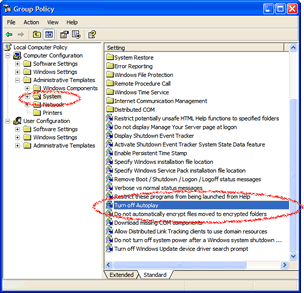
3. Group Policy window will show up.

4. In the left side pane, Under Computer Configuration, look for Administrative Template.

5. Navigate Administrative Template and look for System.

6. Click the folder System to show up the options on the right side pane.

7. Look for Turn Off Autoplay then double click.


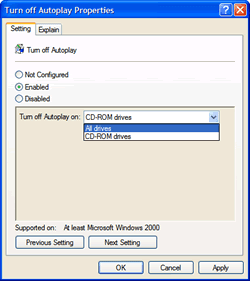
8. Then a new window will pop-up, select which drive you tend to disable. I suggest to choose All drives to leave you more secured from viruses.


9. Finally, click OK.

Knowing the IP address of Computer

What is an IP Address? IP address or Internet Protocol Address is composed of 32 bits or equivalent to four Octets. This works same as our Home Street Address. Through IP addressing computers will have communications between each other.

How to know what my IP address??
Follow this steps:

To access run, press window key in your keyboard (located left side besides Alt key) then press

R key.

A window will open up like this:


Then type cmd then press OK button or hit Enter Key.

A black screen or window will pop up.


Then type ipconfig in the blinking cursor of the black screen, then press ENTER to check for your IP address, subnet mask, and default gateway.

How-to: Remotely shutdown computer Using Command Prompt

 
'Shutdown' in computer language is like going to bed and sleep. Computer needs to rest like human beings. When we say remotely shutdown a computer, it simply means to turn off other computers or laptops that are connected via LAN using your computer. Let say, you have 2 computers in your home, 1 is located in the ground floor and the other one is in your bedroom which is in the second floor.

Think of scenario that you are in your bedroom using your computer for about 8 hours and you feel like you want to go to bed and sleep but you still need to go down to shutdown your other computer in the ground floor. One solution is to know this simple trick. But remember that this will only work if you are connected via Local Area Network using Switch or Router Switch to your remote computers.

Here's the flow to follow..

This method below requires you to have an administrator account on the computer that you will perform the shutdown or else you will encounter an error "Access is Denied".
This method will require you to have either the IP address or machine name of the computer or computers you want to shutdown remotely.

All of the methods below were created using Windows XP. Vista offers the same commands and a few extras, while Windows 2000 has similar commands. If you use 2000, change the “-“ to a “/”.
Microsoft has included a tool that comes with Windows that will be the focus of most of this article. I always like to use inbuilt utilities when they are available. In this case the command is “shutdown”.

If you open up a command prompt (Start > Run > Cmd) and type “shutdown” without "", you will see that there are a bundle of arguments you can use with the shutdown command. The -m argument followed by the machine name, and a -r(restart trigger) will shutdown your computer. The best way for me to explain it is through examples.

In the command prompt, try the following:

shutdown -m \\computername -s ---(Using Computer Name)
or
shutdown -m \\192.168.5.100 -s ---(Using IP Address)
Note: Dont follow the IP Address in the example it might vary. On how to know the IP Address of computer read on this post: Knowing IP address of Computer
Lets break it down:

The shutdown command gets the ball rolling
-m \\computername should be the name of the computer you want to shutdown.
-s tells the remote computer to Shutdown.
There are a number of other arguments you can use.

-r tells the remote computer to Restart
-l tells the remote computer to logoff

So now, you can try it! Good Luck!!