Showing posts with label tips and tricks. Show all posts

How to block Internet Sites in Windows

Do you have common computer in your home? And your 10 year old daughter or son can access internet without any restrictions in the sites? Are you worried that they might accidentaly access a pornographic websites that can pollute their fresh virgin minds? Well, I will show you a simple trick that you can use to block unecessary sites, not only sex related, nude picture sites but all internet web sites you wanted to.

This method is so simple to follow that even if your not that techy, you can seamlessly implement it. This tutorial was tested only in Windows Vista and Windows XP but no harm in trying with other Windows Operating System like Windows 7.

The first step is to open the command prompt. You can do so by clicking Start then find Run or you can perform keyboard shortcut which is WINDOW+R. Then, type cmd in the textbox. Click OK. See sample image.


Command prompt window will then open up. In the blinking cursor, type this commad:

notepad C:\windows\system32\drivers\etc\hosts

Then ENTER.

A notepad file will open up similar to the image below.

Then under 127.0.0.1 localhost type:

127.0.0.1 www.facebook.com (this is a sample website that you want to block)

If you want to add other sites, just type another entry below the first one. It will show like this:

127.0.0.1 www.facebook.com
127.0.0.1 www.friendster.com
so on..
so on..

Then save it by FILE>SAVE. Or shortcut CTRL+S. Close the text file.

To test, open your Internet browser and try to access the block sites you entered a while ago.

How to disable Autoplay

Are you annoyed by autoplay when inserting USB or Flash drive in your laptop? Did you know that this autorun or autoplay feature will lead your laptop into infections because of worms and viruses? That's why it's better to disable that feature before its too late. I will teach you how to disable autorun/autoplay in Windows XP.

Follow these easy steps..

1. Go to Start, then RUN.

2. Type gpedit.msc and Click OK.

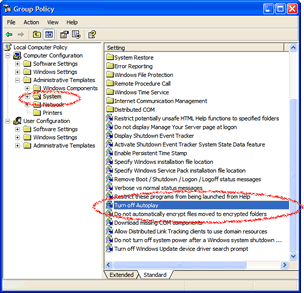
3. Group Policy window will show up.

4. In the left side pane, Under Computer Configuration, look for Administrative Template.

5. Navigate Administrative Template and look for System.

6. Click the folder System to show up the options on the right side pane.

7. Look for Turn Off Autoplay then double click.


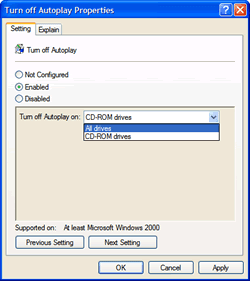
8. Then a new window will pop-up, select which drive you tend to disable. I suggest to choose All drives to leave you more secured from viruses.


9. Finally, click OK.

Knowing the IP address of Computer

What is an IP Address? IP address or Internet Protocol Address is composed of 32 bits or equivalent to four Octets. This works same as our Home Street Address. Through IP addressing computers will have communications between each other.

How to know what my IP address??
Follow this steps:

To access run, press window key in your keyboard (located left side besides Alt key) then press

R key.

A window will open up like this:


Then type cmd then press OK button or hit Enter Key.

A black screen or window will pop up.


Then type ipconfig in the blinking cursor of the black screen, then press ENTER to check for your IP address, subnet mask, and default gateway.

How-to: Remotely shutdown computer Using Command Prompt

 
'Shutdown' in computer language is like going to bed and sleep. Computer needs to rest like human beings. When we say remotely shutdown a computer, it simply means to turn off other computers or laptops that are connected via LAN using your computer. Let say, you have 2 computers in your home, 1 is located in the ground floor and the other one is in your bedroom which is in the second floor.

Think of scenario that you are in your bedroom using your computer for about 8 hours and you feel like you want to go to bed and sleep but you still need to go down to shutdown your other computer in the ground floor. One solution is to know this simple trick. But remember that this will only work if you are connected via Local Area Network using Switch or Router Switch to your remote computers.

Here's the flow to follow..

This method below requires you to have an administrator account on the computer that you will perform the shutdown or else you will encounter an error "Access is Denied".
This method will require you to have either the IP address or machine name of the computer or computers you want to shutdown remotely.

All of the methods below were created using Windows XP. Vista offers the same commands and a few extras, while Windows 2000 has similar commands. If you use 2000, change the “-“ to a “/”.
Microsoft has included a tool that comes with Windows that will be the focus of most of this article. I always like to use inbuilt utilities when they are available. In this case the command is “shutdown”.

If you open up a command prompt (Start > Run > Cmd) and type “shutdown” without "", you will see that there are a bundle of arguments you can use with the shutdown command. The -m argument followed by the machine name, and a -r(restart trigger) will shutdown your computer. The best way for me to explain it is through examples.

In the command prompt, try the following:

shutdown -m \\computername -s ---(Using Computer Name)
or
shutdown -m \\192.168.5.100 -s ---(Using IP Address)
Note: Dont follow the IP Address in the example it might vary. On how to know the IP Address of computer read on this post: Knowing IP address of Computer
Lets break it down:

The shutdown command gets the ball rolling
-m \\computername should be the name of the computer you want to shutdown.
-s tells the remote computer to Shutdown.
There are a number of other arguments you can use.

-r tells the remote computer to Restart
-l tells the remote computer to logoff

So now, you can try it! Good Luck!!